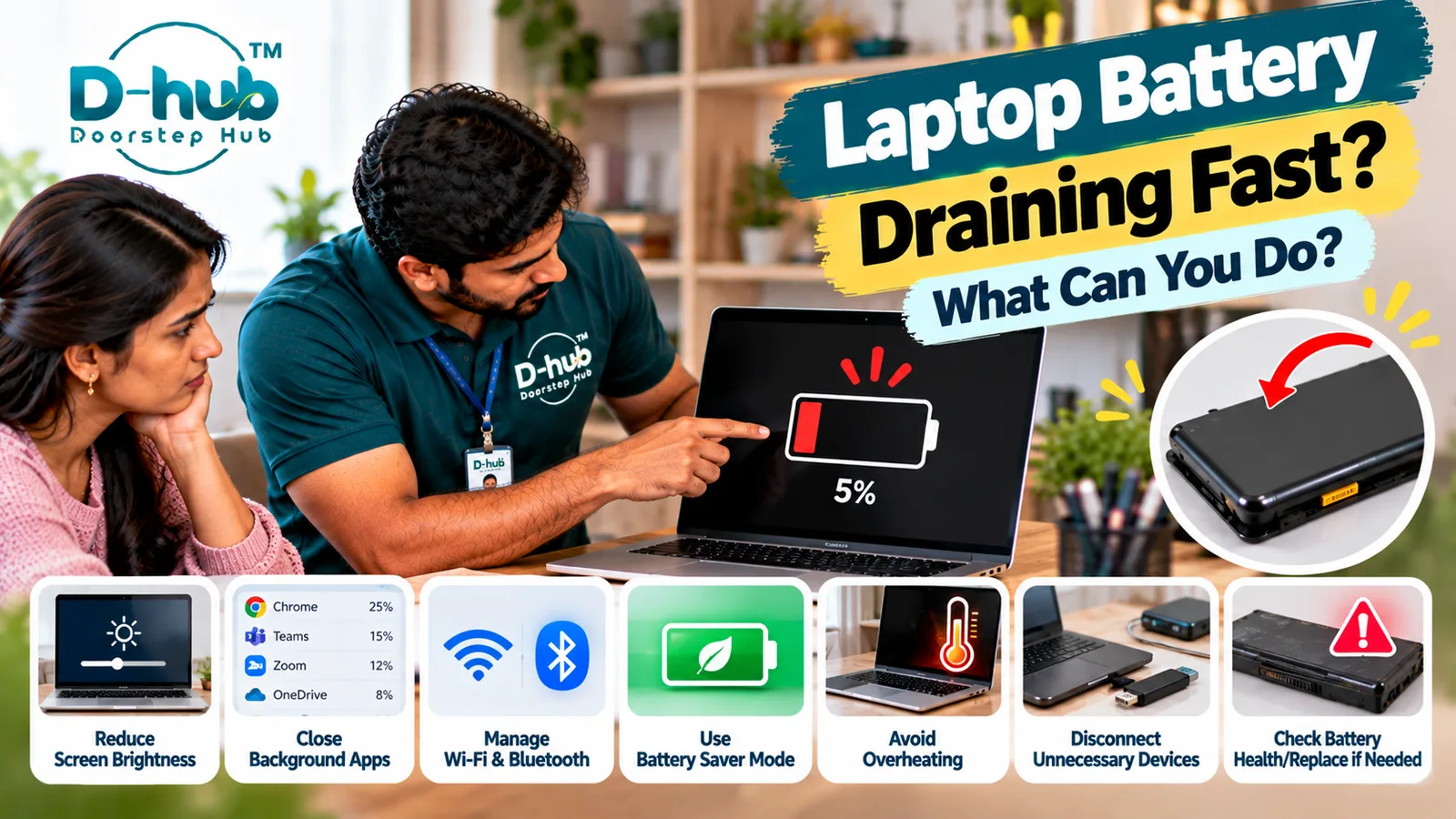
A laptop battery that drains much faster than expected can make it difficult to work, study, attend meetings, travel, or use the device away from a power outlet. Battery runtime naturally decreases gradually as a laptop and its battery age, but sudden or unusually rapid battery drain can also be caused by high screen brightness, background applications, heavy processor or graphics usage, Wi-Fi or Bluetooth activity, power settings, operating-system processes, battery deterioration, or other hardware and software issues. Understanding what is consuming power can help you determine whether the problem can be improved through settings or whether the battery needs professional inspection.
Before considering battery replacement, there are several practical checks you can perform safely. Doorstep Hub brings you this laptop battery-care guide to explain common reasons for fast battery drain, ways to reduce unnecessary power consumption, warning signs that should not be ignored, and when professional laptop repair or battery replacement assistance may be required.
Why Is My Laptop Battery Draining So Fast?
Laptop battery life depends on many factors, including battery condition, device settings, workload, connected hardware, network activity, and how the laptop is being used.
Common reasons for rapid battery drain include:
- High screen brightness
- Too many background applications
- Heavy processor usage
- Graphics-intensive applications
- Wi-Fi or Bluetooth activity
- Connected USB devices
- Battery age and deterioration
- Inefficient power settings
- Operating-system or application activity
- Overheating
- Battery or charging-system problems
A combination of several factors may also reduce battery runtime.
1. Reduce Screen Brightness
The laptop display can consume a significant amount of battery power.
If your screen brightness is set higher than necessary, reducing it to a comfortable level may help extend battery runtime.
You can also review:
- Automatic brightness settings
- Display sleep timeout
- Screen-off settings
- Battery-saving display options
Choose settings that remain comfortable and practical for your working environment.
2. Check Which Applications Are Using Battery Power
Modern operating systems often provide battery-usage information showing which applications have consumed significant power.
Review this information to identify applications that are using more battery than expected.
Applications involving:
- Video conferencing
- Gaming
- Video editing
- Streaming
- Cloud synchronization
- Large downloads
- Development tools
- Background processing
may consume more power than basic browsing or document work.
Close applications you are not actively using.
3. Reduce Unnecessary Background Activity
Some applications continue running even when you are not actively using them.
Background applications may perform tasks such as:
- Synchronizing files
- Checking notifications
- Downloading updates
- Refreshing information
- Running background services
Review your operating system and application settings and disable unnecessary background activity where appropriate.
Avoid disabling unfamiliar system services unless you understand their purpose.
4. Review Your Laptop's Power Settings
Most laptops provide power-management settings designed to balance performance and battery runtime.
Depending on your operating system and laptop model, you may find options for:
- Battery saver
- Energy saver
- Balanced performance
- Screen timeout
- Sleep timing
- Background activity
- Processor power management
Using an appropriate battery-saving or balanced mode can help reduce unnecessary power consumption when maximum performance is not required.
5. Wi-Fi and Bluetooth Can Affect Battery Runtime
Wireless communication requires power.
Wi-Fi usage, Bluetooth accessories, mobile hotspots, large downloads, cloud synchronization, and continuous network activity can contribute to battery consumption.
You do not necessarily need to disable connectivity during normal use, but turning off unused wireless features may help when maximizing battery runtime is important.
6. Disconnect Unnecessary External Devices
Connected accessories may draw power from the laptop.
Examples include:
- External hard drives
- USB devices
- Mobile phones charging through USB
- External lighting
- USB hubs
- Other powered accessories
Disconnect devices you are not actively using when operating primarily on battery power.
7. Heavy Workloads Can Drain the Battery Faster
Processor- and graphics-intensive workloads require more electrical power.
Activities such as:
- Gaming
- Video editing
- 3D rendering
- Software compilation
- High-resolution streaming
- Running multiple demanding applications
can reduce battery runtime significantly compared with lighter everyday activities.
Faster battery drain during demanding workloads can therefore be expected to some extent.
8. Battery Age Can Reduce Runtime
Rechargeable laptop batteries gradually lose some of their original capacity as they age and accumulate charging cycles.
Possible signs of battery deterioration include:
- Significantly shorter runtime
- Battery percentage dropping quickly
- Laptop shutting down before reaching 0%
- Battery not charging completely
- Battery percentage changing unexpectedly
- Laptop working normally only when connected to the charger
Battery-health information available through the operating system or manufacturer tools may help assess its condition.
9. Can Laptop Overheating Affect Battery Performance?
Excessive heat can affect laptop performance and may contribute to battery-related problems.
Keep the laptop on a firm, stable surface and make sure ventilation openings remain unobstructed.
If the laptop regularly becomes excessively hot, the cooling system may require inspection.
Persistent overheating should be addressed rather than treating rapid battery drain as an isolated problem.
10. Keep Your Operating System and Applications Maintained
Software problems, background processes, or poorly optimized applications can sometimes increase power consumption.
Keep your operating system and trusted applications appropriately updated.
If battery drain started suddenly after a software or configuration change, review recent changes and battery-usage information to identify unusual activity.
How Do You Know If the Laptop Battery Needs Replacement?
Fast battery drain does not automatically mean that a battery requires replacement.
However, professional assessment may be appropriate when:
- Battery runtime has become extremely short
- Battery health reports significant deterioration
- The laptop shuts down unexpectedly
- Battery percentage changes abnormally
- The battery does not charge properly
- The laptop works only while connected to power
- The battery is physically swollen
The battery should be properly evaluated before replacement.
Warning: What Should You Do If the Laptop Battery Is Swollen?
A swollen laptop battery should be treated seriously.
Possible signs include:
- Laptop case beginning to separate
- Trackpad or keyboard area lifting
- Bottom panel bulging
- Device no longer sitting flat
- Visible battery swelling
If you suspect battery swelling, stop using and charging the laptop and seek professional assistance. Do not press, puncture, bend, or attempt to repair a swollen battery yourself.
When Should You Call a Laptop Technician?
Consider professional inspection when:
- Battery drains unusually fast during light usage
- Battery life has decreased significantly
- The laptop shuts down unexpectedly
- Battery percentage behaves abnormally
- The battery does not charge correctly
- The laptop works only when connected to the charger
- The laptop becomes excessively hot
- The charging system appears faulty
- Battery replacement may be required
- Battery swelling is suspected
A trained technician can inspect the battery condition, charger, charging port, charging circuitry, cooling system, power management, and other relevant components to determine the actual cause.
Professional Laptop Battery Support with Doorstep Hub
If your laptop battery continues draining rapidly despite adjusting basic settings and reducing unnecessary background activity, Doorstep Hub can help you connect with service professionals for laptop inspection, troubleshooting, battery assessment, servicing, and repair assistance.
Whether the problem involves battery deterioration, charging issues, excessive background activity, overheating, charger problems, charging-port faults, or another hardware-related issue, proper diagnosis can help determine whether optimization, servicing, or battery replacement is appropriate.
Need Laptop Repair Support?
📞 Helpline: 8886688666
🌐 Website: doorstephub.com
📲 Doorstep Hub App: Open Doorstep Hub App
Start by reviewing screen brightness, battery usage, background applications, wireless activity, and power settings. If battery performance remains unusually poor—or you notice swelling, excessive heat, or charging problems—arrange professional inspection.
Frequently Asked Questions
Common troubleshooting questions answered by our specialists
Was this article helpful?
Your feedback helps us improve our repair guides and service tips.