Laptop overheating is a common problem that can affect performance, comfort, and the long-term condition of internal components. A laptop naturally produces heat while the processor, graphics hardware, storage, battery, and other components are operating. However, when the cooling system cannot remove this heat effectively, the laptop may become unusually hot, the cooling fan may run continuously at high speed, performance may slow down, or the device may shut down unexpectedly. Common causes include blocked ventilation openings, accumulated dust, heavy workloads, damaged or inefficient cooling fans, dried or aged thermal material, high surrounding temperatures, or internal hardware problems.
Some overheating problems can be reduced through simple everyday habits, while persistent or severe heat may require professional inspection. Doorstep Hub brings you this practical laptop overheating guide to help you understand common causes, preventive measures you can take at home, warning signs to watch for, and when professional laptop cleaning or repair assistance may be appropriate.
Why Is My Laptop Overheating?
Modern laptops contain powerful components inside relatively compact enclosures. Cooling fans, heat sinks, ventilation openings, and thermal materials work together to control internal temperatures.
If airflow becomes restricted or the cooling system does not work properly, heat can accumulate inside the laptop.
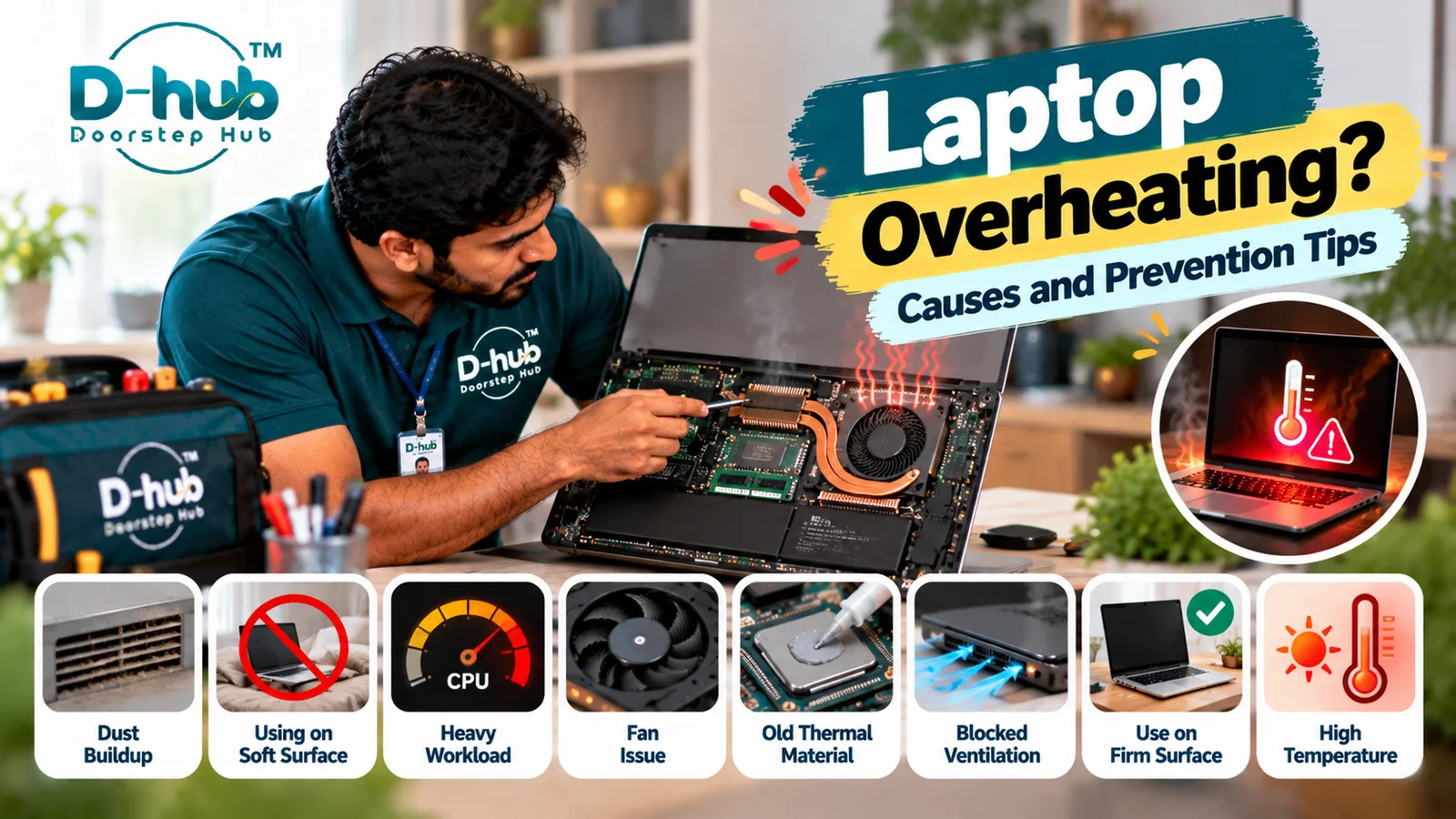
Common causes of laptop overheating include:
- Blocked air vents
- Dust accumulation
- Using the laptop on soft surfaces
- Heavy processor or graphics workloads
- Cooling-fan problems
- Old or deteriorated thermal material
- High room temperature
- Background applications consuming excessive resources
- Battery-related problems
- Internal hardware or cooling-system faults
Identifying when the laptop becomes hot can help narrow down the possible cause.
1. Keep Laptop Ventilation Openings Clear
Laptop cooling systems depend on airflow.
Ventilation openings are commonly located on the bottom, sides, or rear of the laptop. Blocking these openings can restrict airflow and increase internal temperatures.
To improve ventilation:
- Keep air vents unobstructed.
- Avoid placing objects directly against exhaust openings.
- Keep dust away from accessible vents.
- Provide sufficient space around the laptop.
- Avoid covering the laptop while it is operating.
Good airflow can help the cooling system operate more effectively.
2. Use the Laptop on a Firm, Flat Surface
Using a laptop on a bed, blanket, pillow, sofa, or other soft material can block ventilation openings underneath the device.
Whenever possible, place your laptop on a:
- Desk
- Table
- Firm laptop stand
- Other stable, hard surface
This helps maintain airflow underneath and around the laptop.
If you frequently use your laptop for demanding workloads, proper positioning becomes particularly important.
3. Dust Can Cause Laptop Overheating
Dust can gradually accumulate around vents, fans, and internal cooling components.
As dust builds up, airflow may decrease and the cooling fan may have to work harder to control temperature.
Possible signs of dust-related cooling problems include:
- Laptop becoming hotter than before
- Fan running frequently
- Fan becoming unusually loud
- Reduced performance during demanding tasks
- Unexpected thermal shutdowns
Cleaning accessible exterior vents can help, but internal cleaning should be performed carefully to avoid damaging delicate components.
4. Heavy Workloads Can Increase Laptop Temperature
Certain applications require significantly more processing power than everyday activities.
Examples include:
- Gaming
- Video editing
- 3D rendering
- Software development workloads
- Large data processing
- Multiple demanding applications running together
- High-resolution media processing
It is normal for a laptop to become warmer and for the cooling fan to increase speed during demanding tasks.
However, repeated shutdowns, extreme heat, or severe performance reduction may indicate that the cooling system needs attention.
5. Close Unnecessary Background Applications
Too many applications running simultaneously can increase processor and memory activity.
Check the operating system's appropriate system-monitoring tools to identify applications using unusually high resources.
Closing applications you do not need may reduce unnecessary workload.
Avoid terminating unfamiliar system processes unless you understand their purpose, as doing so can affect normal system operation.
6. Can a Faulty Laptop Fan Cause Overheating?
Yes. The cooling fan helps move heat away from internal components.
A fan that is damaged, obstructed, worn, or not operating correctly may allow temperatures to rise.
Possible fan-related symptoms include:
- No fan activity when expected
- Very loud fan noise
- Grinding or rattling sounds
- Fan repeatedly speeding up and slowing down
- Excessive heat
- Unexpected shutdowns
A technician can inspect the fan and cooling assembly to determine whether cleaning, repair, or replacement is necessary.
7. Can Old Thermal Material Cause Overheating?
Thermal material helps transfer heat from components such as the processor to the cooling assembly.
Over time, thermal material may deteriorate or become less effective depending on the laptop's age, design, operating conditions, and previous servicing.
If temperatures remain unusually high despite normal airflow and a functioning fan, the internal cooling system may require professional inspection.
Thermal material should be serviced carefully and correctly rather than replaced unnecessarily.
8. Why Does My Laptop Slow Down When It Gets Hot?
Many laptops are designed to reduce processor or graphics performance when internal temperatures become too high.
This protective behavior can result in:
- Slower application performance
- Reduced gaming performance
- System lag
- Longer processing times
- Reduced responsiveness
If performance repeatedly drops when the laptop becomes hot, cooling and ventilation should be investigated.
9. Why Does My Laptop Shut Down When It Overheats?
Some laptops may automatically shut down or restart when internal temperatures reach protective limits.
Repeated heat-related shutdowns should not be ignored.
Possible causes can include:
- Blocked airflow
- Dust accumulation
- Cooling-fan failure
- Cooling-system problems
- Heavy sustained workloads
- Internal hardware faults
Allow the laptop to cool and avoid repeatedly restarting it if it immediately overheats again.
10. Keep the Laptop Environment Clean and Ventilated
The environment where you use your laptop can affect cooling.
For better everyday laptop care:
- Use the laptop in a reasonably ventilated area.
- Keep vents free from dust.
- Avoid direct sunlight for extended periods.
- Keep the laptop away from strong heat sources.
- Avoid covering ventilation openings.
- Use a stable surface.
These simple habits can help the laptop's cooling system work more effectively.
Warning Signs You Should Not Ignore
Stop using the laptop and arrange appropriate inspection if you notice:
- Burning smell
- Smoke
- Battery swelling
- Extremely high surface temperature
- Repeated unexpected shutdowns
- Grinding or abnormal fan noises
- Visible heat-related damage
- Charger or charging port becoming abnormally hot
A swollen battery requires particular care. Avoid pressing, puncturing, or attempting to repair it yourself.
Avoid Unnecessary DIY Internal Cleaning
Basic external cleaning and ventilation checks can generally be performed without opening the laptop.
Internal servicing may involve:
- Cooling fan
- Heat sink
- Thermal material
- Battery
- Motherboard
- Internal connectors
- Other delicate components
Incorrect disassembly or cleaning can damage cables, connectors, fans, or electronic components.
If internal dust buildup or cooling-system failure is suspected, professional servicing may be safer.
When Should You Call a Laptop Technician?
Consider professional laptop inspection when:
- The laptop becomes extremely hot during normal use
- The fan runs loudly almost continuously
- Grinding or rattling comes from the fan
- The laptop repeatedly shuts down or restarts
- Performance drops significantly when the device becomes hot
- Cleaning accessible vents does not improve cooling
- The cooling fan appears not to work
- The laptop overheats even during light usage
- Battery swelling or unusual heat is noticed
- Internal cleaning or cooling-system repair is required
A trained technician can inspect the cooling fan, ventilation system, heat sink, thermal material, battery, motherboard, and related components to determine the cause of persistent overheating.
Professional Laptop Overheating Support with Doorstep Hub
If your laptop continues overheating despite basic ventilation and usage checks, Doorstep Hub can help you connect with service professionals for laptop inspection, cleaning, troubleshooting, maintenance, and repair assistance.
Whether the issue involves dust accumulation, blocked airflow, cooling-fan problems, thermal-material deterioration, abnormal system load, battery problems, or another internal hardware issue, professional diagnosis can help determine the appropriate solution.
Need Laptop Repair Support?
📞 Helpline: 8886688666
🌐 Website: doorstephub.com
📲 Doorstep Hub App: Open Doorstep Hub App
Keep your laptop on a firm surface, maintain clear ventilation, and avoid unnecessarily blocking the cooling system. If overheating continues, especially with shutdowns or unusual fan noises, arrange professional inspection.
Frequently Asked Questions
Common troubleshooting questions answered by our specialists
Was this article helpful?
Your feedback helps us improve our repair guides and service tips.