Keeping your Buy & Sell listing accurate and up to date helps buyers understand whether an item is still available and whether any important details have changed.
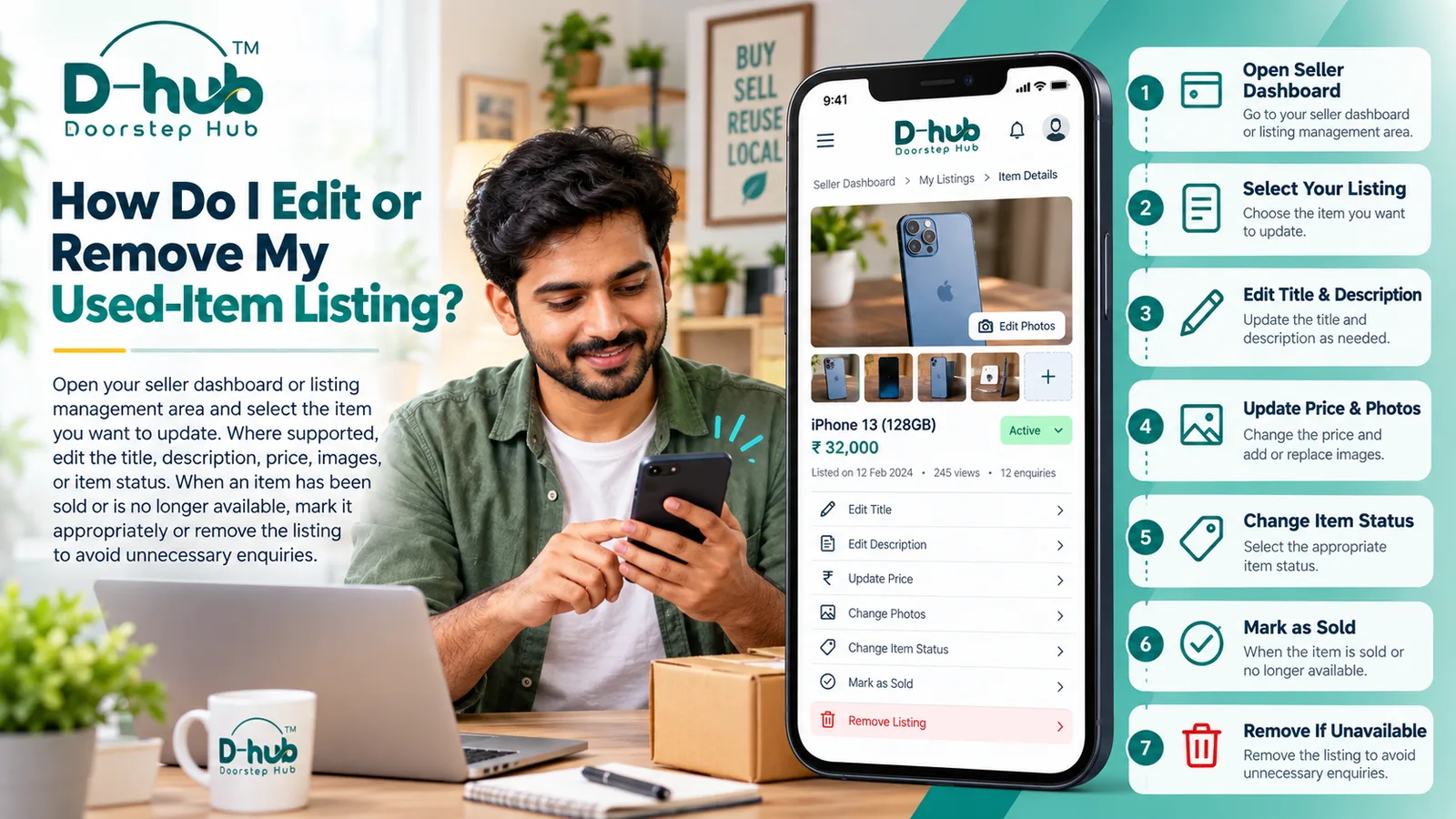
If you need to change the price, update the description, replace photos, correct product information, or remove an item that has already been sold, you can manage the listing through your Doorstep Hub Buy & Sell seller area where these options are available.
1. Open Your Seller Dashboard
Sign in to your Doorstep Hub account and open the Buy & Sell section.
Go to your seller dashboard or listing-management area to view the advertisements you have posted.
Depending on the available interface, your listings may be grouped by status such as:
- Active
- Pending
- Sold
- Inactive
- Removed
Select the listing you want to manage.
2. Select the Item You Want to Update
Open the relevant listing and review its current information.
Before making changes, check whether the listing still accurately shows:
- Item title
- Description
- Category
- Brand and model
- Condition
- Asking price
- Photos
- Accessories
- Known defects
- Item availability
Updating incorrect or outdated information can help prevent confusion for interested buyers.
3. Edit the Listing Title
Where editing is supported, update the title if the existing one is unclear or contains incorrect information.
A good title should clearly identify the item.
You may include:
- Product name
- Brand
- Model
- Important specification
- Condition where useful
Avoid changing the title to something unrelated simply to attract more views.
The title should continue to accurately represent the item being offered.
4. Update the Description
Edit the description whenever important information about the item changes or needs clarification.
You may need to update:
- Product age
- Condition
- Specifications
- Included accessories
- Repair history
- Known defects
- Warranty information
- Reason for sale
If you discover an issue after publishing the listing, add it to the description rather than leaving outdated information visible.
Accurate descriptions help buyers make informed decisions.
5. Change the Asking Price
If necessary, update your asking price.
You may want to review the price if:
- Similar used items are selling for different amounts
- The item's market value has changed
- You want to reduce the price
- The condition has changed
- Accessories have been added or removed
Choose a realistic price based on the item's current condition and market value.
Avoid changing the price in a misleading way or creating false discounts.
6. Update or Replace Listing Photos
Clear and current photographs are important for used-item listings.
Where supported, replace outdated or unclear images with recent photographs of the actual item.
Consider updating photos if:
- The item's condition has changed
- Existing photos are blurry
- Important angles are missing
- New accessories are included
- Visible damage was not previously shown
Use genuine photographs and avoid unrelated stock images or heavily edited pictures.
7. Correct Item Details
Review category-specific information and correct anything that is inaccurate.
This may include:
- Brand
- Model
- Size
- Colour
- Storage capacity
- Purchase year
- Warranty status
- Technical specifications
- Included accessories
Correct details can make the listing easier for buyers to understand and compare.
8. Update the Item Condition
If the item's condition has changed since the advertisement was published, update the listing where the option is available.
For example, an item may have developed:
- New scratches
- Damage
- Battery problems
- Missing accessories
- Functional issues
The listing should represent the item's current condition rather than the condition it was in when the advertisement was originally created.
9. Review Your Changes
Before saving or publishing your updates, review the complete listing again.
Check:
- Title
- Description
- Price
- Photos
- Condition
- Accessories
- Specifications
- Availability status
Make sure the updated information is clear and consistent.
10. Mark the Item as Sold
When your item has been sold, update its status where the platform provides this option.
Marking the listing as Sold helps other buyers understand that the item is no longer available.
This can help reduce:
- Unnecessary enquiries
- Repeated messages
- Confusion about availability
Update the listing as soon as reasonably practical after completing the sale.
11. Remove a Listing That Is No Longer Available
If you no longer want to sell an item, remove or deactivate the listing where supported.
You may want to remove a listing when:
- The item has already been sold
- You have decided to keep the item
- The item is no longer available
- The advertisement was posted incorrectly
- You no longer wish to receive enquiries
Leaving unavailable items listed can cause unnecessary communication with buyers.
12. Avoid Creating Duplicate Listings Unnecessarily
If you only need to change a price, photograph, description, or other detail, edit the existing advertisement where possible instead of creating multiple listings for the same item.
Duplicate advertisements can make it harder for buyers to know which information is current.
Keep one accurate and up-to-date listing whenever the available platform features allow it.
13. Review Active Listings Periodically
If you have several items listed for sale, review your active advertisements from time to time.
Check whether:
- Each item is still available
- Prices are still appropriate
- Photos remain accurate
- Descriptions are current
- Sold items have been updated
- Old listings should be removed
Keeping your seller dashboard organized can make managing enquiries easier.
Why Keeping Your Listing Updated Matters
An accurate listing helps buyers understand what is currently available.
Regular updates can help:
- Reduce unnecessary enquiries
- Prevent confusion about sold items
- Keep pricing current
- Show the latest product condition
- Correct outdated information
- Improve communication with buyers
Your listing should continue to reflect the actual item for as long as it remains published.
Manage Your Listings with Doorstep Hub Buy & Sell
With Doorstep Hub Buy & Sell, review your seller dashboard whenever you need to manage an existing advertisement.
Where supported, you can update the title, description, price, photographs, product details, condition, or availability status.
Once an item has been sold or is no longer available, mark it appropriately or remove the listing so buyers are not contacting you about an unavailable product.
Need Help with Doorstep Hub Buy & Sell?
📞 Helpline: 8886688666
🌐 Website: doorstephub.com
📲 Download the Doorstep Hub App
Keeping your listings accurate and current can help create a clearer and smoother experience for both buyers and sellers.
Frequently Asked Questions
Common troubleshooting questions answered by our specialists
Was this article helpful?
Your feedback helps us improve our repair guides and service tips.