Sometimes you may need to change or cancel a pet grooming or pet care appointment because of schedule changes, pet health concerns, travel, or other unexpected reasons.
With Doorstep Hub, rescheduling and cancellation options may depend on the current booking status, appointment timing, provider availability, and any conditions associated with the selected service.
Before making changes, open your booking and review the options currently available.
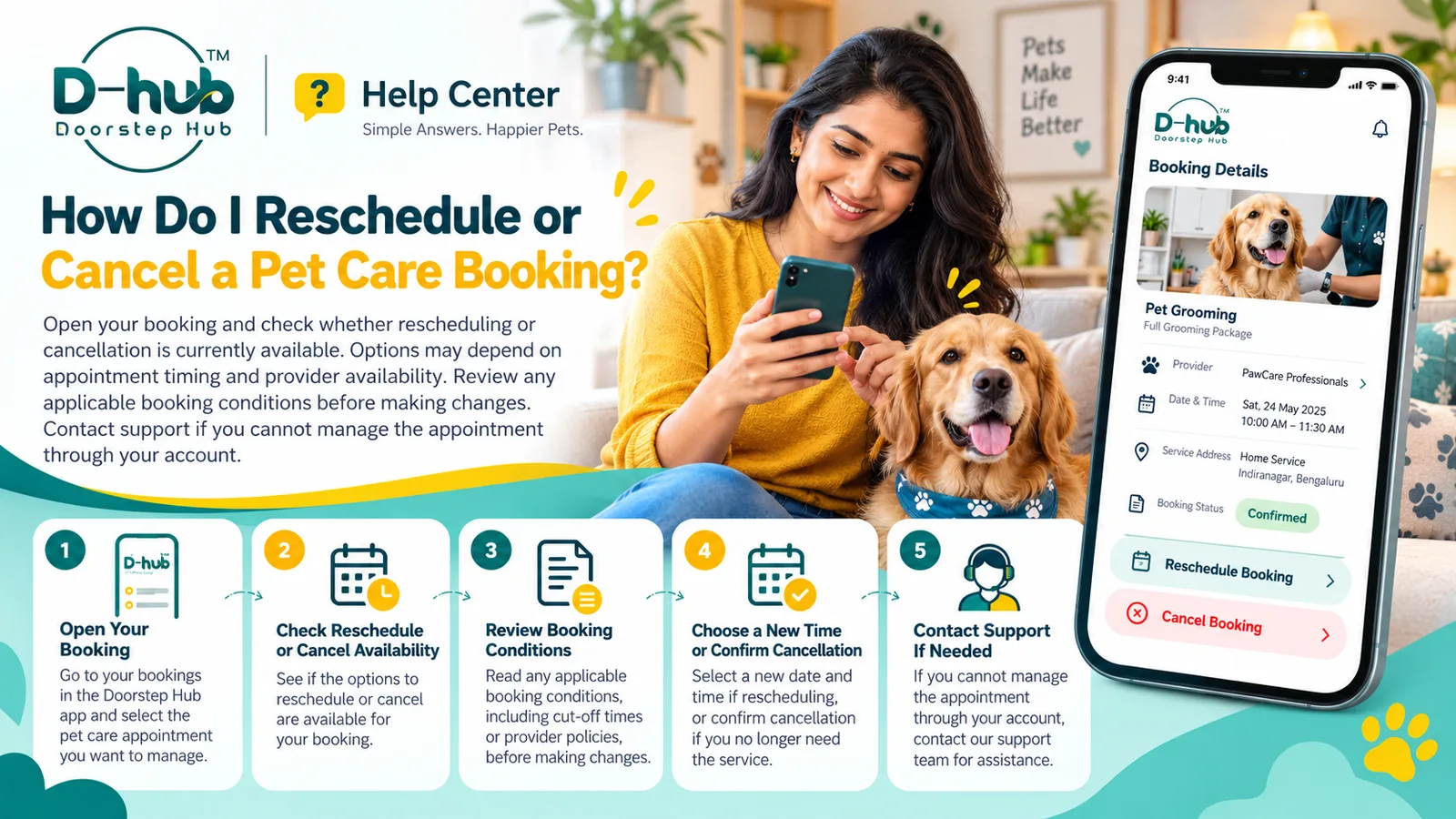
1. Open Your Pet Care Booking
Sign in to your Doorstep Hub account and open the section where your pet care bookings are displayed.
Select the booking you want to manage.
Review details such as:
- Pet care service
- Provider
- Appointment date
- Appointment time
- Service location
- Booking status
- Available booking actions
Make sure you are viewing the correct appointment before making any changes.
2. Check the Current Booking Status
Your ability to reschedule or cancel may depend on the current status of the appointment.
For example, some options may be available for upcoming bookings but unavailable once the service has already started, been completed, or reached another restricted stage.
Always check the current booking status first.
3. Look for the Reschedule Option
Where supported, your booking may show an option such as:
- Reschedule
- Change Date
- Change Time
- Modify Booking
Select the available option and review any alternative appointment slots.
If the option is not shown, the booking may not currently be eligible for online rescheduling.
4. Choose Another Available Appointment Time
If rescheduling is available, select another date or time from the options shown.
Before confirming the new appointment, check:
- New date
- New time
- Provider
- Service
- Location
Choose a time that allows you to prepare your pet calmly before the appointment.
5. Consider Provider Availability
Rescheduling depends on the provider having another suitable appointment slot.
Your preferred time may not always be available, particularly during:
- Weekends
- Holidays
- Busy periods
- High-demand appointment times
If your preferred slot is unavailable, review other available options.
6. Review Rescheduling Conditions
Before confirming a change, check whether any booking conditions apply.
These may depend on:
- Service type
- Provider
- Appointment timing
- Booking status
- How close the change is to the scheduled appointment
Review the information shown for your specific booking rather than assuming every pet care appointment follows the same rules.
7. Check Whether Cancellation Is Available
If you no longer need the appointment, look for the available cancellation option.
Where supported, cancellation may be available directly from your booking details.
Before proceeding, review:
- Current booking status
- Cancellation conditions
- Timing requirements
- Any applicable refund information
The exact options may vary by booking.
8. Cancel as Early as Possible
If you know that you cannot attend or receive the service, try to cancel as early as reasonably possible.
Early cancellation can help:
- Keep the provider's schedule accurate
- Make the appointment slot available to others
- Reduce last-minute confusion
- Give you more time to review alternative arrangements
Waiting until very close to the appointment may affect the available options.
9. Review Any Applicable Cancellation Terms
Cancellation rules may vary depending on the service and timing.
Before confirming, check whether the booking shows information about:
- Cancellation eligibility
- Timing restrictions
- Refund eligibility
- Applicable deductions
- Other booking conditions
Do not assume that cancelling automatically means a full refund.
Any applicable terms should follow the policy shown for the booking.
10. Confirm the Change
Whether you are rescheduling or cancelling, complete all required steps until the update is confirmed.
After making the change, reopen the booking and check that the status has been updated correctly.
For a rescheduled booking, confirm the new:
- Date
- Time
- Provider
- Location
For a cancelled booking, confirm that it no longer appears as an active upcoming appointment where applicable.
11. Check for Updated Confirmation
Where supported, you may receive confirmation through:
- Doorstep Hub account
- App notification
- SMS
- Other available notification channels
Keep the updated details until the appointment change is fully resolved.
12. Do Not Create a Duplicate Booking Immediately
If you only need to change the appointment time, use the reschedule option where available.
Creating another booking before confirming the status of the original one may lead to:
- Multiple active appointments
- Scheduling confusion
- Duplicate charges where applicable
- Multiple provider assignments
Confirm what has happened with the original booking first.
13. Update Your Pet Preparation Plans
If the appointment has been rescheduled, adjust your preparation accordingly.
For example:
- Update your calendar
- Prepare your pet for the new time
- Check travel arrangements
- Confirm grooming instructions
- Keep handling information ready
Do not rely on the original appointment details after a successful reschedule.
14. Contact Doorstep Hub Support if the Option Is Unavailable
If you cannot reschedule or cancel through your account, contact Doorstep Hub Support for assistance.
Keep useful booking information ready, such as:
- Booking reference
- Pet care service
- Provider
- Appointment date
- Appointment time
- Current booking status
- Requested change
Providing complete information can help support understand the issue more clearly.
15. Contact Support Early When Possible
If you expect that you may not be able to attend the appointment, seek assistance as early as possible.
Waiting until the last moment may reduce the available alternatives.
Early communication may make it easier to review:
- Another time slot
- Cancellation options
- Provider availability
- Other booking arrangements
16. Keep Relevant Booking Records
Until the change is complete, keep important booking information available.
This may include:
- Original booking confirmation
- Updated appointment details
- Cancellation confirmation
- Payment information where relevant
- Support communication
Do not share passwords, OTPs, PINs, or other sensitive authentication information when requesting assistance.
Why Managing Your Pet Care Booking Early Matters
Rescheduling or cancelling early can make changes easier for both you and the provider.
It can help:
- Reduce missed appointments
- Keep provider schedules accurate
- Avoid unnecessary duplicate bookings
- Give you more alternative time options
- Keep your Doorstep Hub account information current
- Reduce confusion about appointment status
Booking options can change as the appointment time approaches, so review them as soon as you know your plans have changed.
Manage Your Pet Care Booking with Doorstep Hub
To reschedule or cancel a pet care appointment through Doorstep Hub, open your booking and check which options are currently available.
Rescheduling and cancellation may depend on the appointment timing, provider availability, booking status, and applicable conditions.
Review the relevant terms before making changes, and if you cannot manage the appointment through your account, contact Doorstep Hub Support for assistance.
Need Help with Your Doorstep Hub Pet Care Booking?
📞 Helpline: 8886688666
🌐 Website: doorstephub.com
📲 Download the Doorstep Hub App
Review your booking early and make changes as soon as possible when your plans change.
Frequently Asked Questions
Common troubleshooting questions answered by our specialists
Was this article helpful?
Your feedback helps us improve our repair guides and service tips.