How Do I Reschedule a Salon or Beauty Service Booking?
Sometimes you may need to change your salon or beauty service appointment because of a schedule conflict, travel delay, personal commitment, or another unexpected reason.
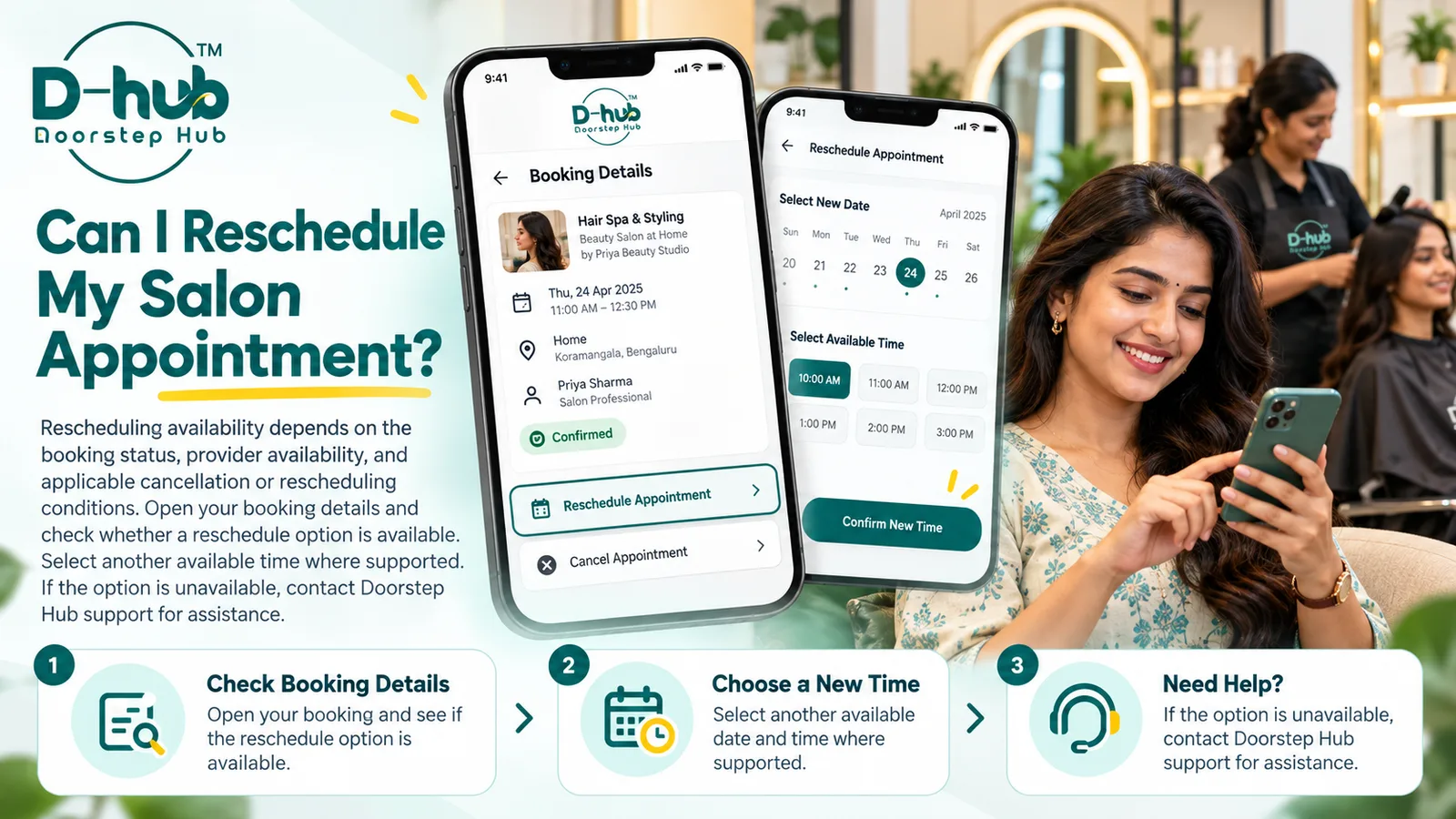
With Doorstep Hub, rescheduling options may depend on the current booking status, provider availability, and any applicable rescheduling or cancellation conditions.
Before making changes, open your booking details and review the options available for your appointment.
1. Open Your Booking Details
Sign in to your Doorstep Hub account and open the section where your service bookings are displayed.
Select the salon or beauty service booking you want to change.
Review the booking information, including:
- Service name
- Provider
- Location
- Appointment date
- Appointment time
- Booking status
- Available booking actions
This helps you confirm that you are updating the correct appointment.
2. Check the Current Booking Status
Your ability to reschedule may depend on the current status of the booking.
For example, rescheduling may be available for some upcoming or confirmed appointments but unavailable once the service has started, been completed, or reached another restricted stage.
Always review the current booking status before attempting to make changes.
3. Look for the Reschedule Option
Where supported, your booking details may show an option such as Reschedule, Change Time, or another similar action.
Select the available option to view alternative appointment slots.
If no reschedule option is displayed, it may mean that:
- The booking is no longer eligible for online rescheduling
- The provider has no alternative slots available
- The appointment is too close to the scheduled time
- Different booking conditions apply
- Support assistance may be required
4. Review Available Dates and Times
If rescheduling is available, check the alternative appointment slots shown.
Choose a date and time that works for you.
Before selecting a new slot, consider:
- Your own availability
- Provider availability
- Service duration
- Travel time where applicable
- Other appointments or commitments
Only choose from the slots currently shown as available.
5. Confirm the New Appointment Time
After selecting another available time, review the updated booking information before confirming.
Check:
- Correct service
- Provider
- Location
- New date
- New time
- Any updated conditions
Make sure the new appointment is convenient before completing the rescheduling process.
6. Review Rescheduling Conditions
Some bookings may have specific rules or conditions related to appointment changes.
Depending on the service or provider, these may involve:
- Rescheduling deadlines
- Limited number of changes
- Provider approval
- Availability restrictions
- Applicable cancellation conditions
Review any information shown before confirming your change.
7. Check Whether the Provider Is Available
Rescheduling depends on provider availability.
Your preferred new time may not always be available, especially during:
- Weekends
- Evenings
- Holidays
- Busy periods
- High-demand appointment times
If your preferred slot is unavailable, consider another available time where practical.
8. Check for Updated Booking Information
After completing the reschedule process, review your booking again.
Make sure the updated appointment details are visible.
Check:
- New date
- New time
- Provider
- Location
- Booking status
Where available, you may also receive an updated confirmation or notification.
9. Do Not Assume the Appointment Has Changed Until Confirmed
Simply selecting a new time does not always mean the booking has been successfully updated.
Complete all required steps and check that the new appointment information appears in your Doorstep Hub account where supported.
If the old date and time are still displayed, the change may not have been completed.
10. What If the Reschedule Option Is Not Available?
If you cannot find a reschedule option in your booking details, contact Doorstep Hub Support for assistance.
When contacting support, keep useful information ready, such as:
- Booking reference where available
- Service name
- Provider name
- Current appointment date
- Current appointment time
- Preferred alternative date or time
Support can help you understand what options may be available for the booking.
11. Contact Support as Early as Possible
If you already know that you cannot attend your appointment, try to review your rescheduling options as early as reasonably possible.
Waiting until very close to the appointment may reduce the number of available alternatives.
Early action can also make it easier to find another suitable time.
12. Avoid Creating a Duplicate Booking Unnecessarily
If you only want to change the appointment time, use the available reschedule option where possible instead of creating another booking immediately.
Duplicate bookings may cause confusion and could result in multiple active appointments.
If the original booking cannot be changed, confirm what action should be taken before creating a new one.
13. Review Cancellation Options Separately
Rescheduling and cancellation are not always the same.
If you cannot attend and no alternative time is suitable, review the available cancellation options and applicable conditions.
Do not assume that cancelling and booking again will always have the same conditions as rescheduling.
14. Keep Your Booking Details Updated
Once your appointment has been rescheduled, use the updated information when planning for the service.
If you saved the old appointment separately in your calendar or notes, update it so you do not accidentally follow the previous schedule.
Why Rescheduling Early Matters
Reviewing your appointment options early can help you manage schedule changes more smoothly.
It can help:
- Find more available time slots
- Reduce confusion
- Keep provider schedules accurate
- Avoid missed appointments
- Prevent unnecessary duplicate bookings
- Keep your Doorstep Hub booking information current
Availability can change, so rescheduling as soon as you know you need a different time may provide more options.
Reschedule Your Doorstep Hub Booking
To reschedule a salon or beauty service on Doorstep Hub, open your booking details and check whether a reschedule option is available.
Where supported, select another available date or time and confirm the updated appointment.
Rescheduling availability may depend on the booking status, provider availability, and applicable booking conditions.
If the option is unavailable or you need assistance, contact Doorstep Hub Support.
Need Help with Your Doorstep Hub Booking?
📞 Helpline: 8886688666
🌐 Website: doorstephub.com
📲 Download the Doorstep Hub App
Review your booking early and choose an available alternative time whenever you need to adjust your appointment.
Frequently Asked Questions
Common troubleshooting questions answered by our specialists
Was this article helpful?
Your feedback helps us improve our repair guides and service tips.